First, we will setup repository database. So let’s begin with 12.1 database installation (software only). This installation is software only later we will create repository database emrep using template
Download and unzip the software
[root@oel6-rac01 ~]# df -hFilesystem Size Used Avail Use% Mounted on/dev/mapper/vg_oel6rac01-lv_root 144G 4.3G 132G 4% /tmpfs 872M 224K 872M 1% /dev/shm/dev/sda1 477M 226M 222M 51% /boot/dev/mapper/vg_oel6rac01-lv_home 50G 53M 47G 1% /home/dev/sr0 57M 57M 0 100% /media/VBox_GAs_6.1.6Software 932G 82G 850G 9% /shared_dir[root@oel6-rac01 ~]# cd /shared_dir[root@oel6-rac01 shared_dir]# ls12c_db_grid 12c_OEM OEL6 sqldeveloper sqldeveloper-19.2.1.247.2212-x64.zip[root@oel6-rac01 shared_dir]# cd 12c_db_grid[root@oel6-rac01 12c_db_grid]# lsdb grid[root@oel6-rac01 12c_db_grid]# cd db[root@oel6-rac01 db]# lsdatabase linuxamd64_12102_database_1of2.zip linuxamd64_12102_database_2of2.zip[root@oel6-rac01 db]# cd database/[root@oel6-rac01 database]# lsinstall response rpm runInstaller sshsetup stage welcome.html[root@oel6-rac01 database]#
Update /etc/hosts file
[root@oel6-rac01 database]# cat /etc/hosts127.0.0.1 localhost localhost.localdomain localhost4 localhost4.localdomain4::1 localhost localhost.localdomain localhost6 localhost6.localdomain6192.168.189.111 oel6-rac01.localdomain oel6-rac01
Perform an automatic setup of rpm
[root@oel6-rac01 database]# yum install oracle-rdbms-server-12cR1-preinstall -yLoaded plugins: refresh-packagekit, security, ulninfoSetting up Install ProcessResolving Dependencies--> Running transaction check---> Package oracle-rdbms-server-12cR1-preinstall.x86_64 0:1.0-17.el6 ...............................Installed: oracle-rdbms-server-12cR1-preinstall.x86_64 0:1.0-17.el6Dependency Installed: compat-libcap1.x86_64 0:1.10-1 compat-libstdc++-33.x86_64 0:3.2.3-69.el6 gcc-c++.x86_64 0:4.4.7-23.0.1.el6 ksh.x86_64 0:20120801-38.el6_10 libaio-devel.x86_64 0:0.3.107-10.el6 libstdc++-devel.x86_64 0:4.4.7-23.0.1.el6Complete!
Set the password for the “oracle” user.
[root@oel6-rac01 database]# passwd oracleChanging password for user oracle.New password:BAD PASSWORD: it is based on a dictionary wordBAD PASSWORD: is too simpleRetype new password:passwd: all authentication tokens updated successfully.
Change 90-nproc.conf file to below
[root@oel6-rac01 database]# cp /etc/security/limits.d/90-nproc.conf /etc/security/limits.d/90-nproc.conf.old[root@oel6-rac01 database]# vi /etc/security/limits.d/90-nproc.conf[root@oel6-rac01 database]# cat /etc/security/limits.d/90-nproc.conf# Default limit for number of user's processes to prevent# accidental fork bombs.# See rhbz #432903 for reasoning.* - nproc 16384root soft nproc unlimited
change SELINUX to permissive
[root@oel6-rac01 database]# cat /etc/selinux/config# This file controls the state of SELinux on the system.# SELINUX= can take one of these three values:# enforcing - SELinux security policy is enforced.# permissive - SELinux prints warnings instead of enforcing.# disabled - No SELinux policy is loaded.SELINUX=permissive# SELINUXTYPE= can take one of these two values:# targeted - Targeted processes are protected,# mls - Multi Level Security protection.SELINUXTYPE=targeted
Once it is done run this command
[root@oel6-rac01 database]# setenforce Permissive
If you have the Linux firewall enabled, you will need to disable or configure it,
[root@oel6-rac01 database]# service iptables stopiptables: Setting chains to policy ACCEPT: filter [ OK ]iptables: Flushing firewall rules: [ OK ]iptables: Unloading modules: [ OK ][root@oel6-rac01 database]# chkconfig iptables off[root@oel6-rac01 database]#
Create the directories in which the Oracle software will be installed.
[root@oel6-rac01 database]# mkdir -p /u01/app/oracle/product/12.1.0.2/db_1[root@oel6-rac01 database]# chown -R oracle:oinstall /u01[root@oel6-rac01 database]# chmod -R 775 /u01[root@oel6-rac01 database]#
Update your bash profile
[root@oel6-rac01 database]# vi /home/oracle/.bash_profile# Oracle Settingsexport TMP=/tmpexport TMPDIR=$TMPexport ORACLE_HOSTNAME=oel6-rac01.localdomainexport ORACLE_UNQNAME=emrepexport ORACLE_BASE=/u01/app/oracleexport ORACLE_HOME=$ORACLE_BASE/product/12.1.0.2/db_1export ORACLE_SID=emrepexport PATH=/usr/sbin:$PATHexport PATH=$ORACLE_HOME/bin:$PATHexport LD_LIBRARY_PATH=$ORACLE_HOME/lib:/lib:/usr/libexport CLASSPATH=$ORACLE_HOME/jlib:$ORACLE_HOME/rdbms/jlib[root@oel6-rac01 database]# su - oracle[oracle@oel6-rac01 ~]$ env|grep ORAORACLE_UNQNAME=emrepORACLE_SID=emrepORACLE_BASE=/u01/app/oracleORACLE_HOSTNAME=oel6-rac01.localdomainORACLE_HOME=/u01/app/oracle/product/12.1.0.2/db_1
In order to do a GUI based installation make settings as mentioned in this doc
https://dbatracker.wordpress.com/2020/05/06/display-gui-using-xming/
Now go to the software location and run runinstaller
[oracle@oel6-rac01 ~]$ cd /shared_dir/[oracle@oel6-rac01 shared_dir]$ ls12c_db_grid 12c_OEM OEL6 sqldeveloper sqldeveloper-19.2.1.247.2212-x64.zip[oracle@oel6-rac01 shared_dir]$ cd 12c_db_grid/[oracle@oel6-rac01 12c_db_grid]$ ;s-bash: syntax error near unexpected token `;'[oracle@oel6-rac01 12c_db_grid]$ lsdb grid[oracle@oel6-rac01 12c_db_grid]$ cd db/[oracle@oel6-rac01 db]$ lsdatabase linuxamd64_12102_database_1of2.zip linuxamd64_12102_database_2of2.zip[oracle@oel6-rac01 db]$ cd database/[oracle@oel6-rac01 database]$ lsinstall response rpm runInstaller sshsetup stage welcome.html[oracle@oel6-rac01 database]$ ./runInstallerStarting Oracle Universal Installer...Checking Temp space: must be greater than 500 MB. Actual 134757 MB PassedChecking swap space: must be greater than 150 MB. Actual 4031 MB PassedChecking monitor: must be configured to display at least 256 colors. Actual 16777216 PassedPreparing to launch Oracle Universal Installer from /tmp/OraInstall2020-05-06_06-09-18PM. Please wait ...[oracle@oel6-rac01 database]$
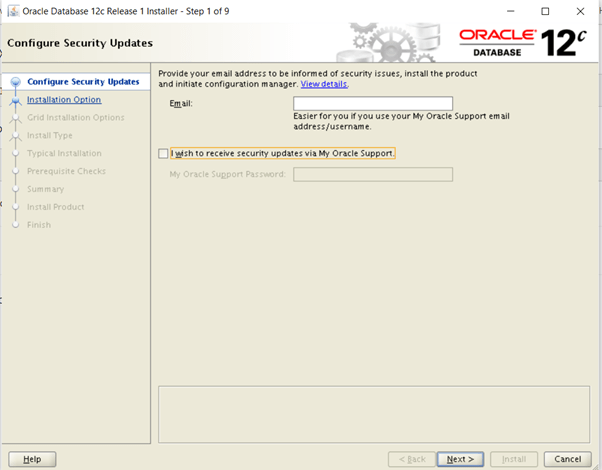
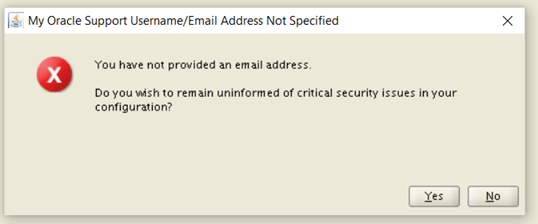
Click yes
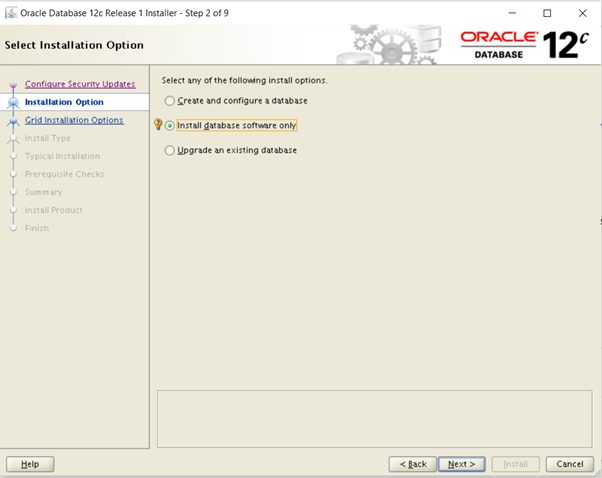
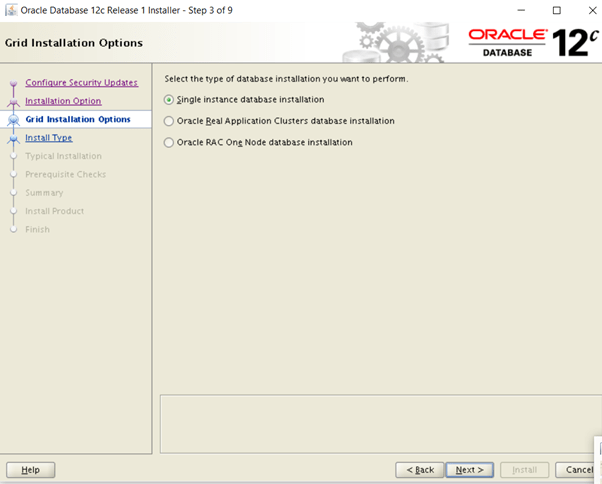
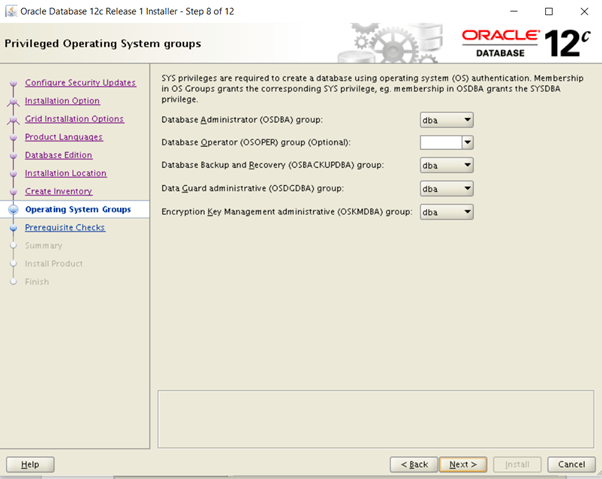
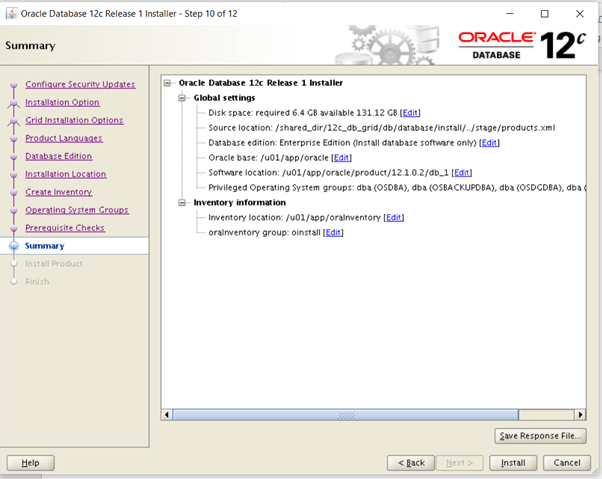
For this installation you will need 12.1.0.2 for the repository database. Do a software-only installation, as we will be using the template to create the repository database.
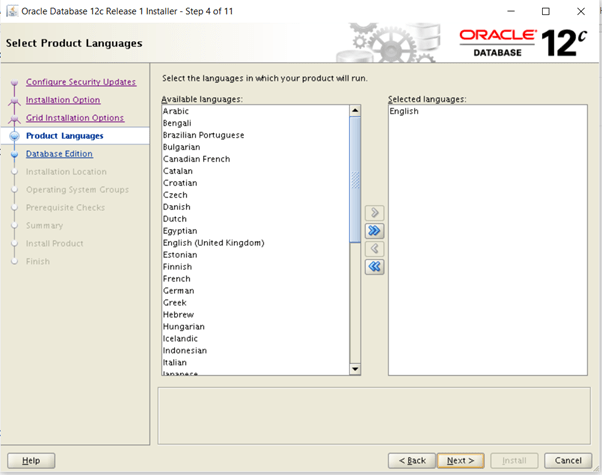
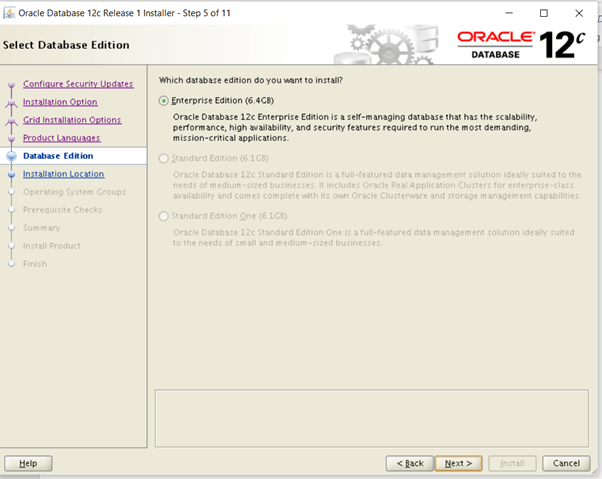
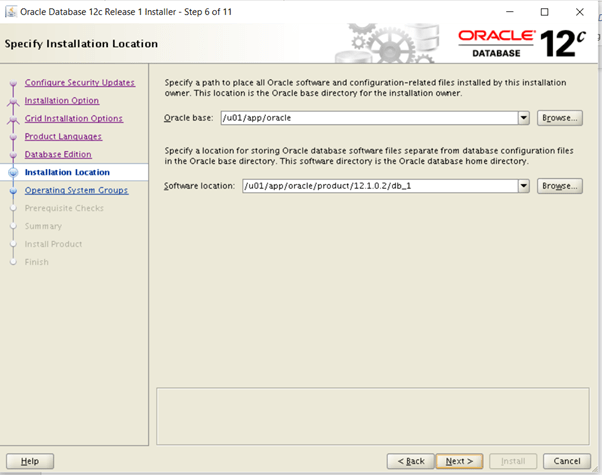
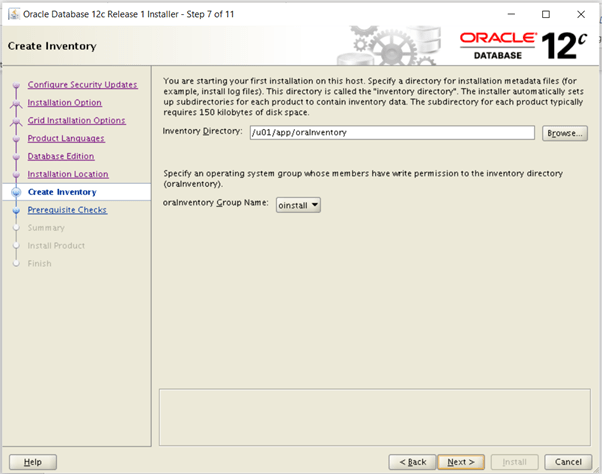
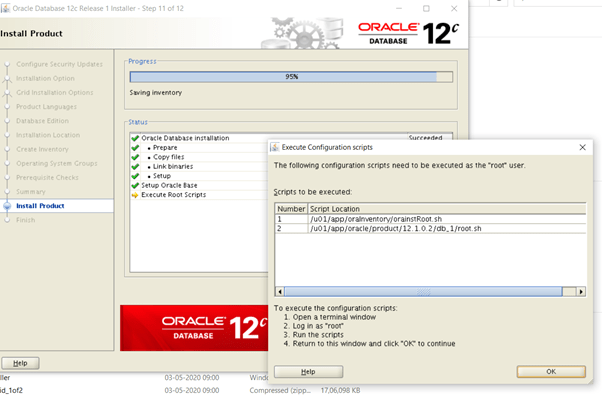
[root@oel6-rac01 ~]# /u01/app/oraInventory/orainstRoot.shChanging permissions of /u01/app/oraInventory.Adding read,write permissions for group.Removing read,write,execute permissions for world.Changing groupname of /u01/app/oraInventory to oinstall.The execution of the script is complete.[root@oel6-rac01 ~]# /u01/app/oracle/product/12.1.0.2/db_1/root.shPerforming root user operation.The following environment variables are set as: ORACLE_OWNER= oracle ORACLE_HOME= /u01/app/oracle/product/12.1.0.2/db_1Enter the full pathname of the local bin directory: [/usr/local/bin]: Copying dbhome to /usr/local/bin ... Copying oraenv to /usr/local/bin ... Copying coraenv to /usr/local/bin ...Creating /etc/oratab file...Entries will be added to the /etc/oratab file as needed byDatabase Configuration Assistant when a database is createdFinished running generic part of root script.Now product-specific root actions will be performed.
Repository Database Creation Using Template
download and unzip the template
[oracle@oel6-rac01 12c_OEM]$ pwd/shared_dir/12c_OEM[oracle@oel6-rac01 12c_OEM]$ ls -ltotal 7155780-rwxrwxrwx. 1 root root 552714982 May 3 00:22 12.1.0.2.0_Database_Template_for_EM13_1_0_0_0_Linux_x64.zip-rwxrwxrwx. 1 root root 1315250699 May 3 01:03 em13100_linux64-2.zip-rwxrwxrwx. 1 root root 2145473190 May 3 09:00 em13100_linux64-3.zip-rwxrwxrwx. 1 root root 2141357330 May 3 09:11 em13100_linux64-4.zip-rwxrwxrwx. 1 root root 331590923 May 3 06:13 em13100_linux64-5.zip-rwxrwxrwx. 1 root root 841114290 May 3 00:50 em13100_linux64.bin[oracle@oel6-rac01 templates]$ cd $ORACLE_HOME/assistants/dbca/templates[oracle@oel6-rac01 templates]$ unzip /shared_dir/12c_OEM/12.1.0.2.0_Database_Template_for_EM13_1_0_0_0_Linux_x64.zipArchive: /shared_dir/12c_OEM/12.1.0.2.0_Database_Template_for_EM13_1_0_0_0_Linux_x64.zip inflating: set_repo_param_12.1.0.2.0_Database_SQL_for_EM13_1_0_0_0_Large_deployment.sql inflating: set_repo_param_12.1.0.2.0_Database_SQL_for_EM13_1_0_0_0_Medium_deployment.sql inflating: set_repo_param_12.1.0.2.0_Database_SQL_for_EM13_1_0_0_0_Small_deployment.sql inflating: shpool_12.1.0.2.0_Database_SQL_for_EM13_1_0_0_0.sql inflating: 12.1.0.2.0_Database_Template_for_EM13_1_0_0_0_Large_deployment.dbc inflating: 12.1.0.2.0_Database_Template_for_EM13_1_0_0_0_Medium_deployment.dbc inflating: 12.1.0.2.0_Database_Template_for_EM13_1_0_0_0_Small_deployment.dbc inflating: 12.1.0.2.0_Database_Template_for_EM13_1_0_0_0.dfb inflating: 12.1.0.2.0_Database_Template_for_EM13_1_0_0_0.ctl[oracle@oel6-rac01 templates]$
Start the Database Configuration Assistant (DBCA) and create a new database using the template.
[oracle@oel6-rac01 templates]$ dbca
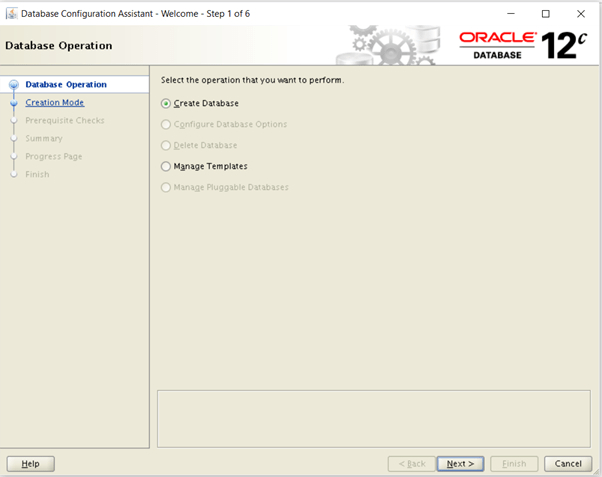
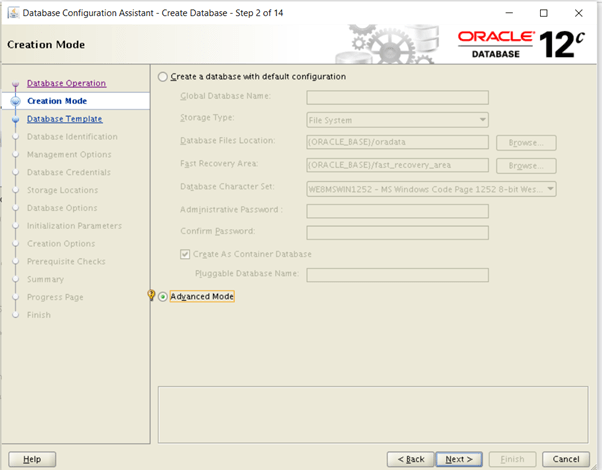
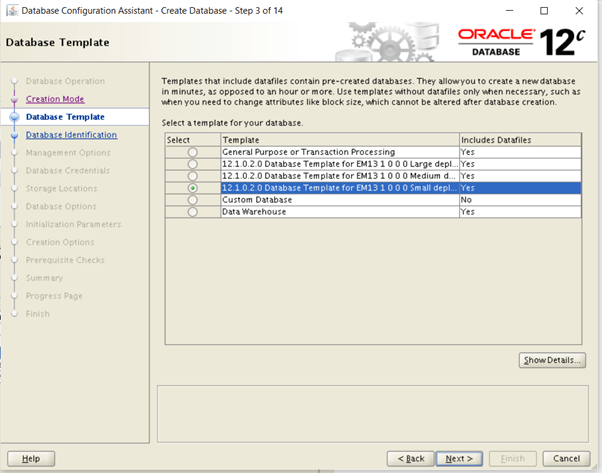
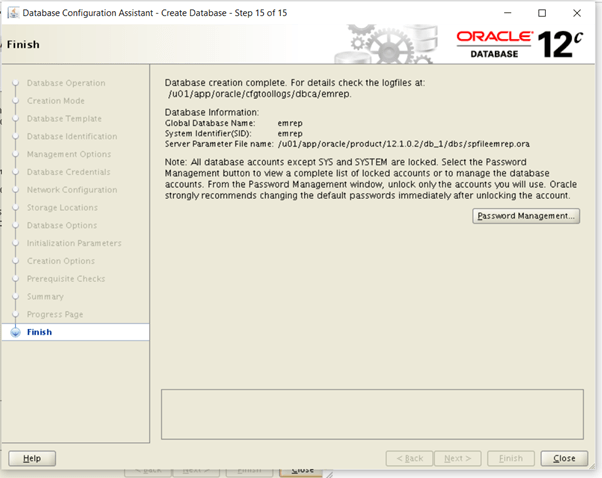
Select the template for the appropriate size of EM installation you need. In this case I’ve used the small option. Click the “Next” button.
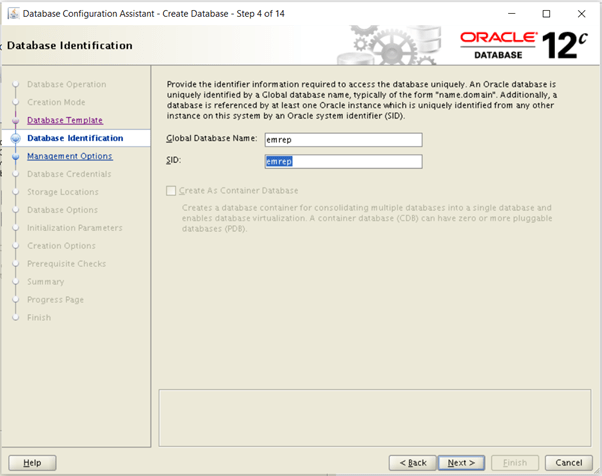
Make sure both the “Configure Enterprise Manager (EM) Database Express” and “Register with Enterprise Manager (EM) Cloud Control” options are unchecked, then click the “Next” button.
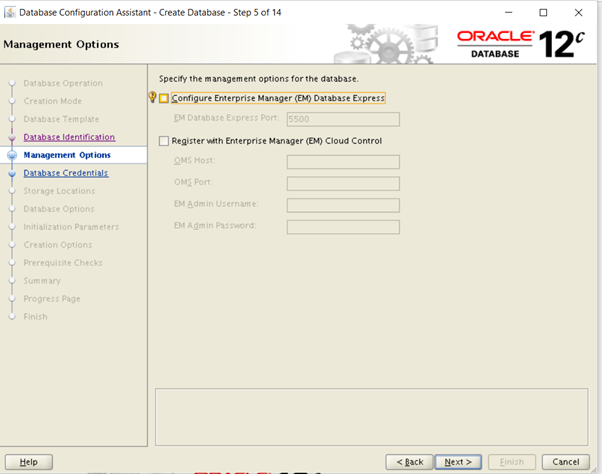
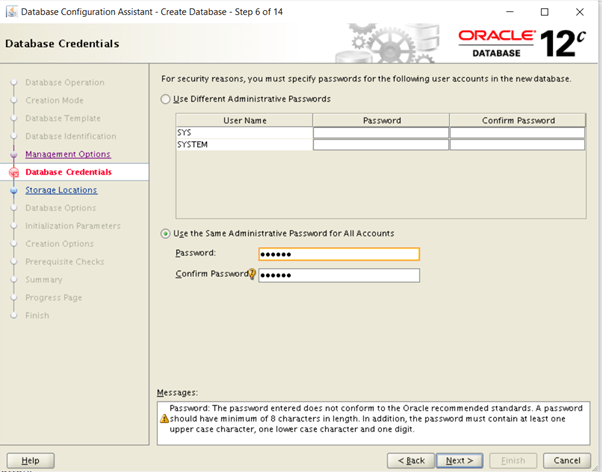
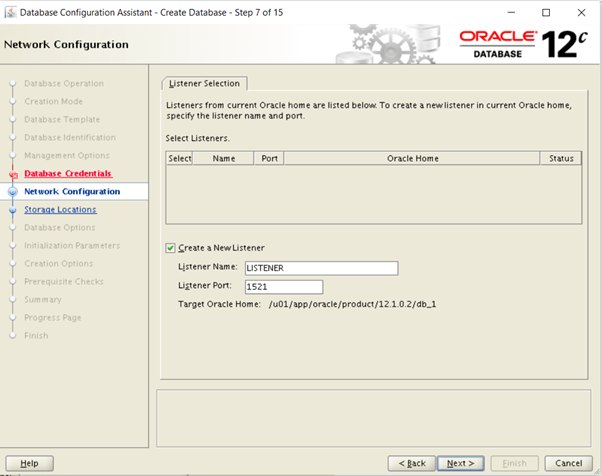
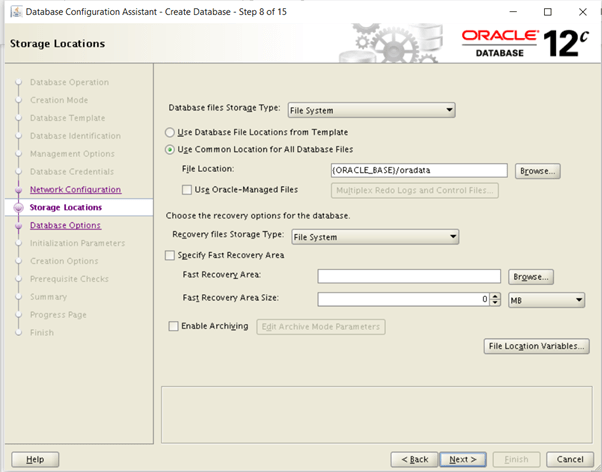
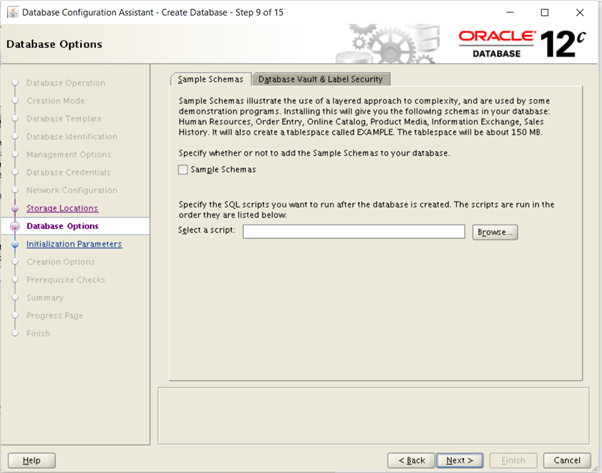
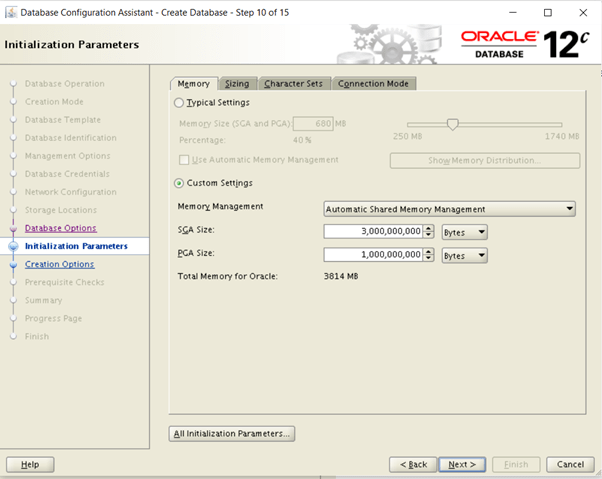
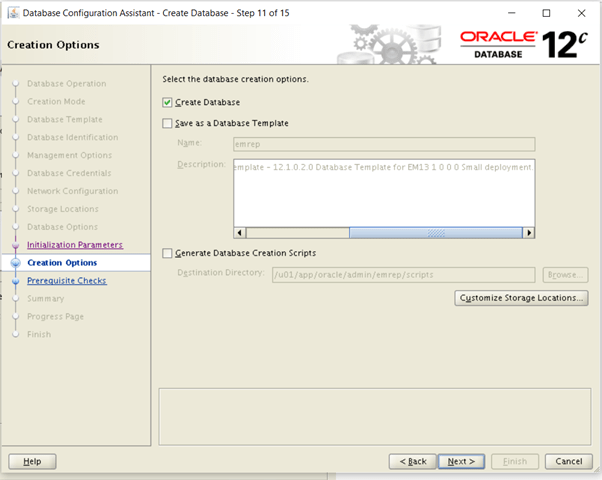
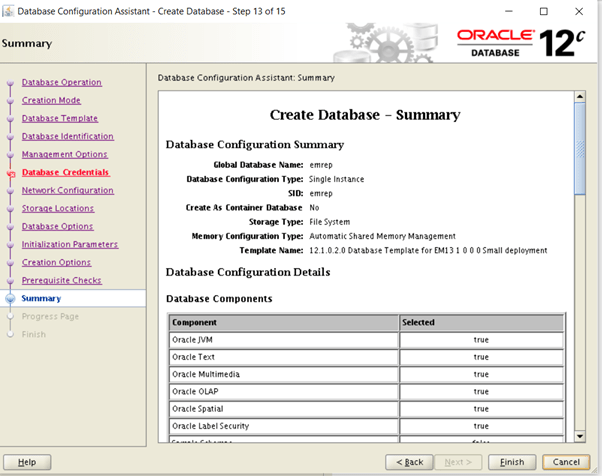
Accepting the defaults
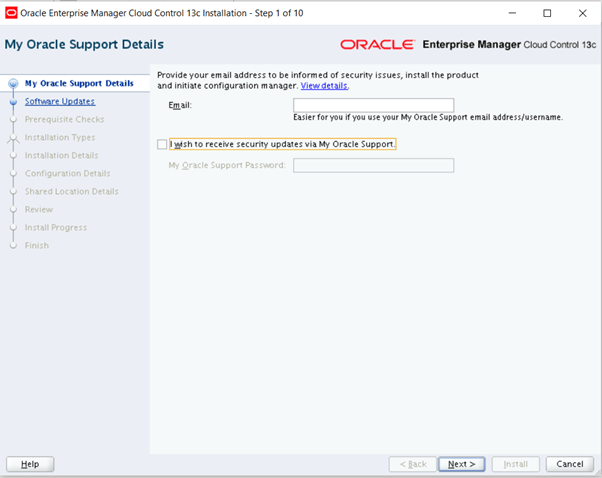
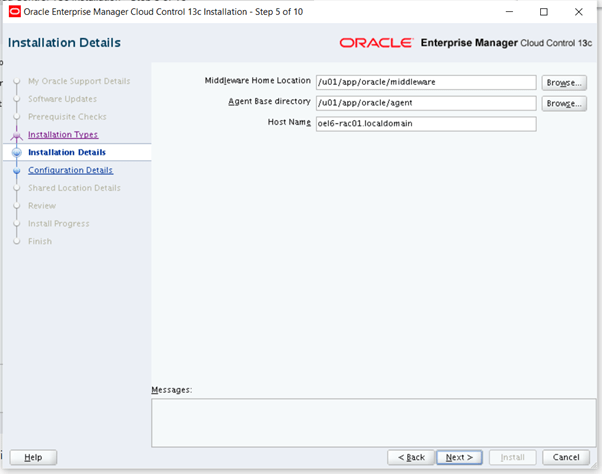
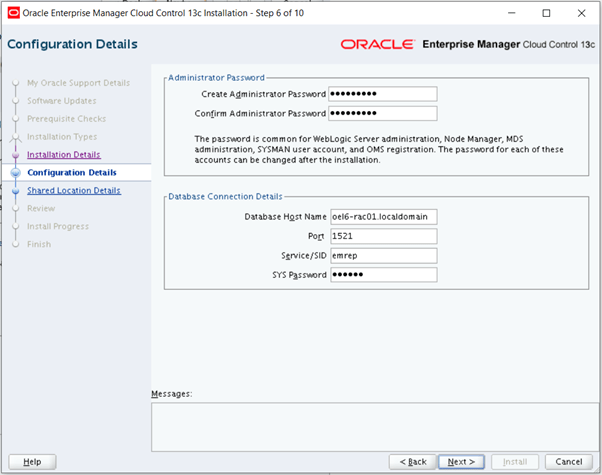
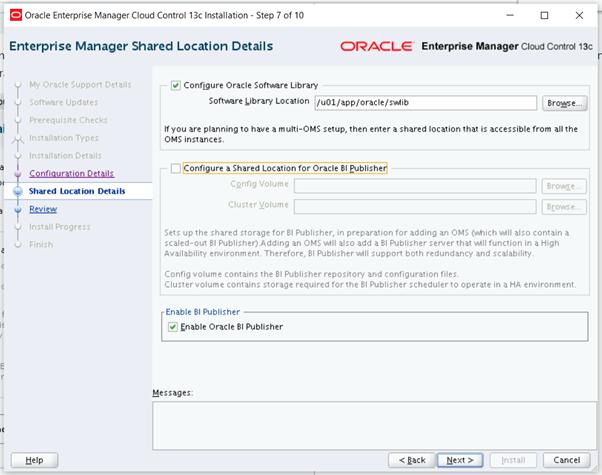
Cloud Control 13c Installation
make required instalaltion directories
[oracle@oel6-rac01 ~]$ mkdir -p /u01/app/oracle/middleware[oracle@oel6-rac01 ~]$ mkdir -p /u01/app/oracle/agent
go to software location. don’t unzip the files just start the installation by running the “em13100_linux64.bin” file.
[oracle@oel6-rac01 12c_OEM]$ chmod u+x em13100_linux64.bin[oracle@oel6-rac01 12c_OEM]$ ./em13100_linux64.bin0%...............................................................100%Launcher log file is /tmp/OraInstall2020-05-06_08-01-42PM/launcher2020-05-06_08-01-42PM.log.Starting Oracle Universal InstallerChecking if CPU speed is above 300 MHz. Actual 1500.251 MHz PassedChecking monitor: must be configured to display at least 256 colors. Actual 16777216 PassedChecking swap space: must be greater than 512 MB. Actual 4031 MB PassedChecking if this platform requires a 64-bit JVM. Actual 64 Passed (64-bit not required)Checking temp space: must be greater than 300 MB. Actual 116360 MB PassedPreparing to launch the Oracle Universal Installer from /tmp/OraInstall2020-05-06_08-01-42PM====Prereq Config Location main===/tmp/OraInstall2020-05-06_08-01-42PM/stage/prereqEMGCInstaller args -scratchPathEMGCInstaller args /tmp/OraInstall2020-05-06_08-01-42PMEMGCInstaller args -sourceTypeEMGCInstaller args networkEMGCInstaller args -timestampEMGCInstaller args 2020-05-06_08-01-42PMEMGCInstaller args -paramFileEMGCInstaller args /tmp/sfx_GyKWh0/Disk1/install/linux64/oraparam.iniEMGCInstaller args -nocleanUpOnExitDiskLoc inside SourceLoc/shared_dir/12c_OEMEMFileLoc:/tmp/OraInstall2020-05-06_08-01-42PM/oui/em/ScratchPathValue :/tmp/OraInstall2020-05-06_08-01-42PM
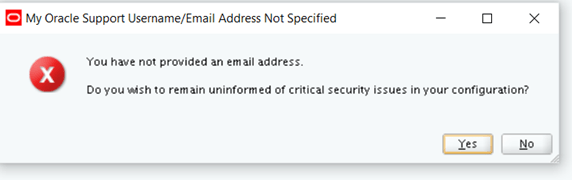
Click yes
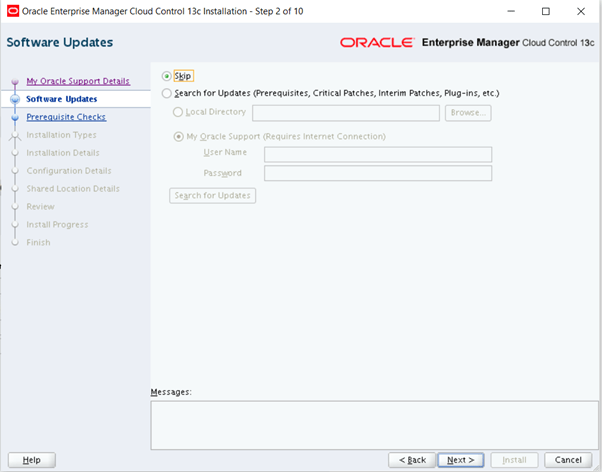
Check failed for OS version message. we need to address this
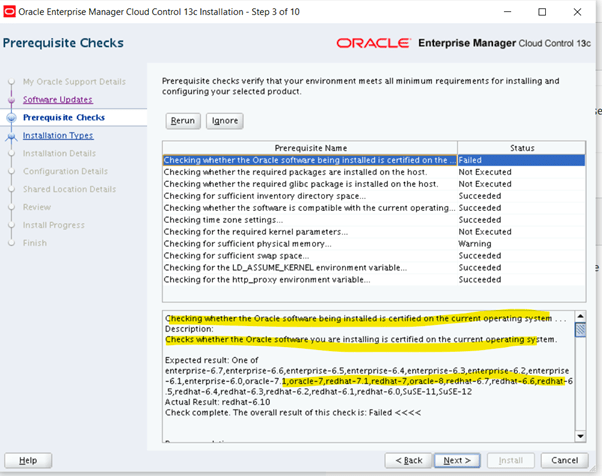
You can fix this by editing the “/etc/oracle-release” and “/etc/redhat-release” files setting the version number to 6.7. Remember to switch it back once the installation is complete
[root@oel6-rac01 ~]# cp /etc/oracle-release /etc/oracle-release.orig[root@oel6-rac01 ~]# vi /etc/oracle-release[root@oel6-rac01 ~]# cp /etc/redhat-release /etc/redhat-release.orig[root@oel6-rac01 ~]# vi /etc/redhat-release[root@oel6-rac01 ~]# cat /etc/redhat-releaseRed Hat Enterprise Linux Server release 6.7 (Santiago)[root@oel6-rac01 ~]# cat /etc/oracle-releaseOracle Linux Server release 6.7
After above changes click on cancel and start again else installer will not recognize the changed setting
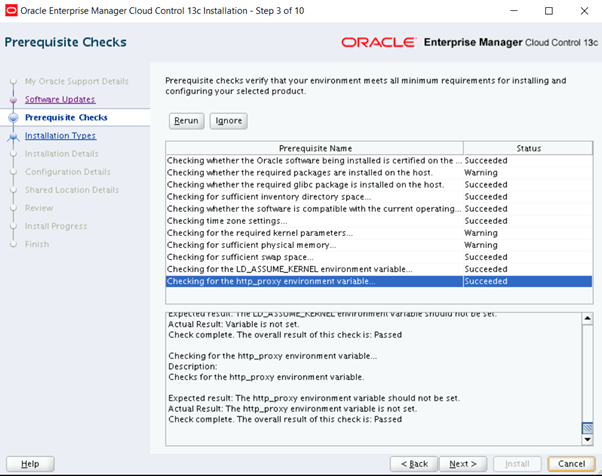
For rpm it is saying that
Checking for glibc-devel-2.12-1.7-i686; Not found. Failed <<<<
But I have it installed. When I try to install glibc-devel-2.12-1.7-i686 it says not available (anyways it is 32 bit and I am doing installation on 64 bit os). So we will continue.
[root@oel6-rac01 ~]# rpm -qa|grep glibc-develglibc-devel-2.12-1.212.0.3.el6_10.3.x86_64[root@oel6-rac01 ~]# yum install glibc-devel-2.12-1.7-i686Loaded plugins: refresh-packagekit, security, ulninfoSetting up Install ProcessNo package glibc-devel-2.12-1.7-i686 available.Error: Nothing to do
Other than that memory throwing warning as I have less memory so I am ignoring it
xpected result: 10240MBActual Result: 8192MBCheck complete. The overall result of this check is: Failed <<<<
For kernel parameter error
Checking for ip_local_port_range=11000 - 65000; ip_local_port_range=9000 - 65500. Failed <<<<
I have changed below in /etc/sysctl.conf file
# oracle-rdbms-server-12cR1-preinstall setting for net.ipv4.ip_local_port_range is 9000 65500#net.ipv4.ip_local_port_range = 9000 65500net.ipv4.ip_local_port_range = 11000 65000
run this to verify the value
[root@oel6-rac01 ~]# /sbin/sysctl -pnet.ipv4.ip_forward = 0net.ipv4.conf.default.accept_source_route = 0kernel.sysrq = 0kernel.core_uses_pid = 1net.ipv4.tcp_syncookies = 1kernel.msgmnb = 65536kernel.msgmax = 65536fs.file-max = 6815744kernel.sem = 250 32000 100 128kernel.shmmni = 4096kernel.shmall = 4294967296kernel.shmmax = 4398046511104kernel.panic_on_oops = 1net.core.rmem_default = 262144net.core.rmem_max = 4194304net.core.wmem_default = 262144net.core.wmem_max = 1048576net.ipv4.conf.all.rp_filter = 2net.ipv4.conf.default.rp_filter = 2fs.aio-max-nr = 1048576net.ipv4.ip_local_port_range = 11000 65000
Enter the command /sbin/sysctl -a to confirm that the values are set correctly.
[root@oel6-rac01 ~]# /sbin/sysctl -a
Now rerun the check it should pass for kernel parameter
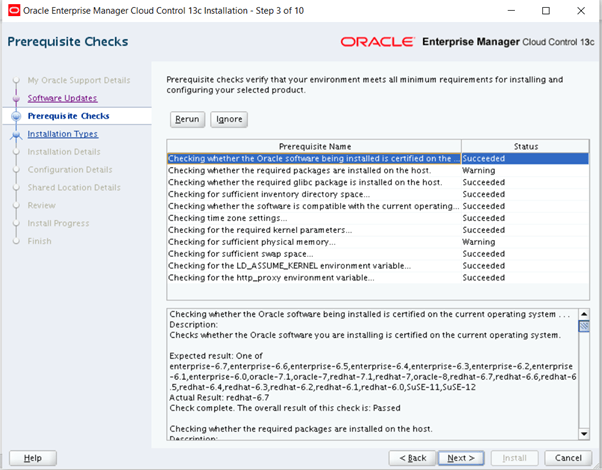
Click on ignore and proceed
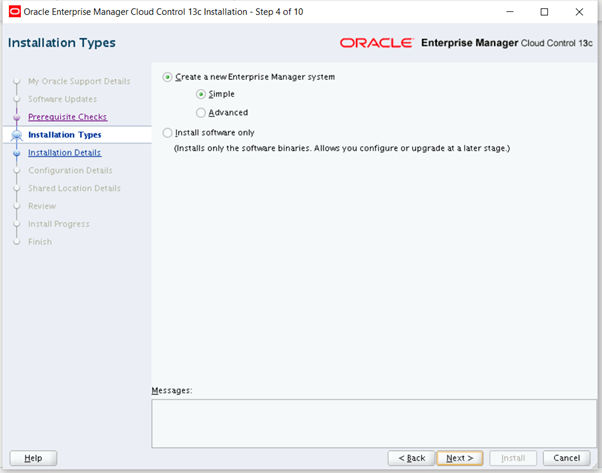
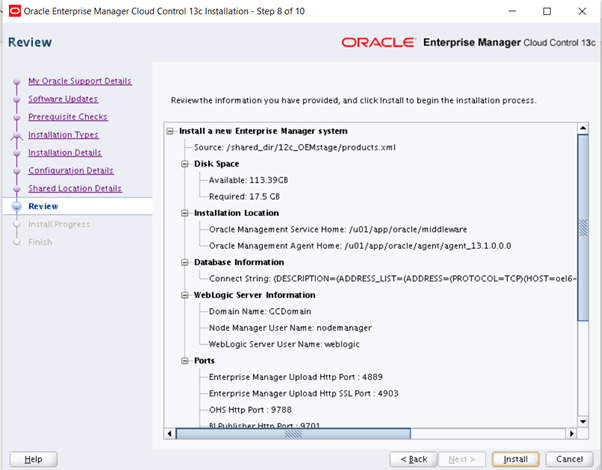
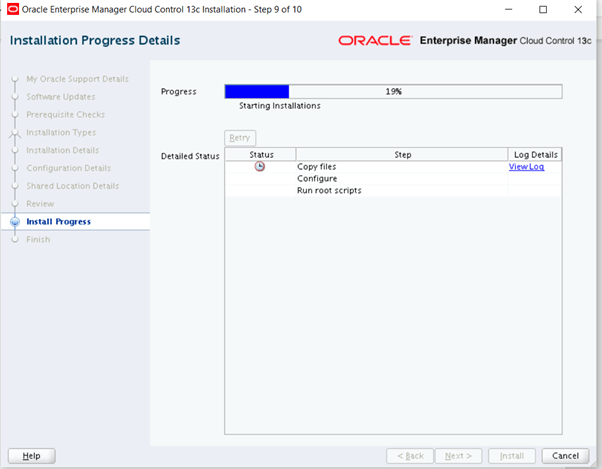
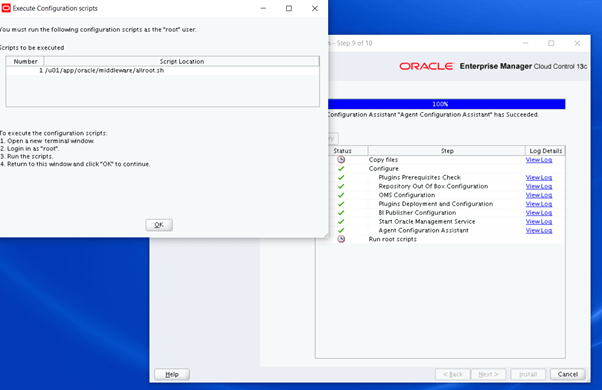
[root@oel6-rac01 ~]# /u01/app/oracle/middleware/allroot.shStarting to execute allroot.sh .........Starting to execute /u01/app/oracle/middleware/root.sh ....../etc existCreating /etc/oragchomelist file.../u01/app/oracle/middlewareFinished product-specific root actions./etc existFinished execution of /u01/app/oracle/middleware/root.sh ......Starting to execute /u01/app/oracle/agent/agent_13.1.0.0.0/root.sh ......Finished product-specific root actions./etc existFinished execution of /u01/app/oracle/agent/agent_13.1.0.0.0/root.sh ......
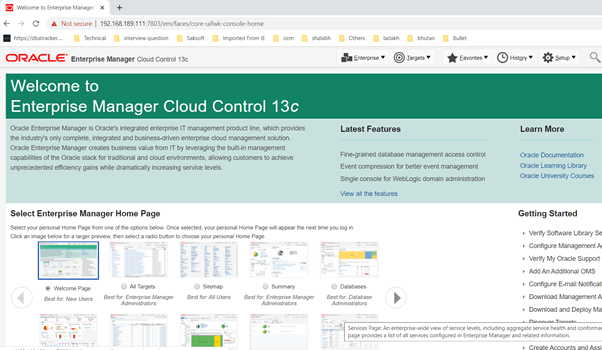
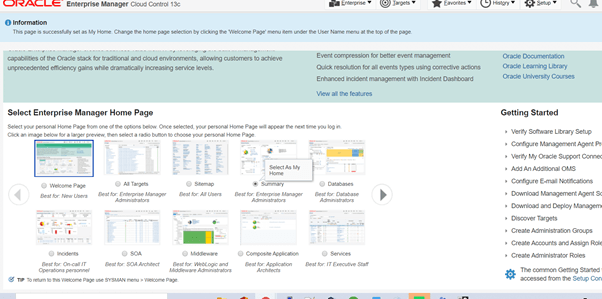
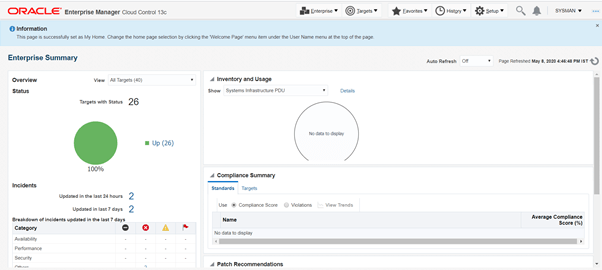
Once all set open the url https://192.168.189.111:7803/em/
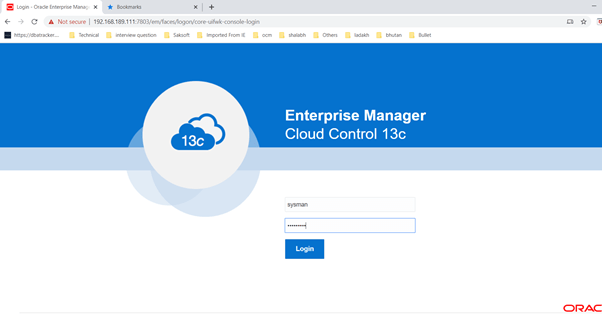
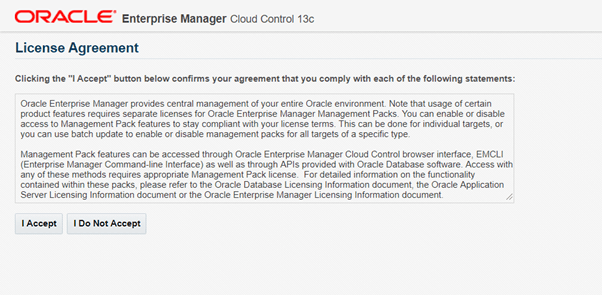
 DBATracker